Desktop App Guide
Open Cowork’s product thesis is a focused workbench: Chat / Team / Tools / Projects / Playbooks (plus Home and Settings).
Default sidebar nav when features is omitted or partial:
Primary (default on)
Home— start a chat, attach context, choose a model, or @mention a coworkerProjects— coordination board (objectives, Kanban tasks, linked work chats)Team— built-in and custom OpenCode agents presented as coworkers with curated tools and skillsPlaybooks— workflow-backed repeatable tasks created from Workflow Designer setup chats, with manual, scheduled, and webhook runsTools & Skills— MCP tools, OpenCode skills, credentials, and capability relationships
Secondary features and Studio surfaces (default off — progressive disclosure)
These remain in the product and in docs, but stay hidden from the default path until enabled with features.<key>: true in open-cowork.config.json (or an overlay). See Progressive disclosure.
Knowledge— in-app knowledge spaces, pages, proposals, and graph (features.knowledge). Not the optional Wiki product (cowork-wiki).Approvals— cross-session permission and question review queue (features.approvals)Channels— Channel Gateway connections, bindings, and delivery status (features.channels)Artifacts— library of generated files, charts, reports, and deliverables (features.artifacts)Voice— private Desktop Local dictation controls when local capture and speech-to-text are available (features.voice)
In-thread chat approvals, questions, and session artifacts still work when the secondary nav surfaces are off — only the dedicated Studio pages are gated.
Always available
Chat— the OpenCode session transcript (entered from Home, Projects, or New chat), with in-thread approvals, questions, files, and delegated coworker workSettings— appearance, models, permissions, storage, and playbook run behaviorAdmin— cloud org administration when the signed-in principal has admin permissions (not shown for pure local Desktop)
Feature keys: projects, team, playbooks, tools, knowledge, approvals, channels, artifacts, voice. Primary keys default on when omitted; secondary keys default off. Set a key to true/false to override. See isDesktopFeatureEnabled / DESKTOP_SECONDARY_FEATURE_KEYS in packages/shared/src/app-config.ts.
Desktop is one Open Cowork surface. Cloud, Gateway, Standalone Gateway, Mobile, and Teams naming and package boundaries are defined in Packaging and Gateway Product Modes.
Team dashboards, incident-control dashboards, and unsupervised autonomous learning controls are not part of the active app surface. User-invoked improvement work still belongs in Chat through the bundled autoresearch skill and agent.
flowchart TD
    Home["Home<br/>composer · attachments · lead picker"]
    Chat["Chat<br/>session UI · streamed events · approvals"]
    Projects["Projects<br/>Kanban · objectives · linked chats"]
    Knowledge["Knowledge<br/>spaces · proposals"]
    Approvals["Approvals<br/>cross-session review queue"]
    Playbooks["Playbooks<br/>setup chats · triggers · runs"]
    Team["Team<br/>built-in + custom coworkers"]
    Channels["Channels<br/>gateway connections"]
    ToolsSkills["Tools & Skills<br/>MCPs · skills · credentials"]
    Artifacts["Artifacts<br/>files · charts · reports"]
    Settings["Settings<br/>models · permissions · storage"]

    Home -->|submit prompt| Chat
    Home -->|resume recent conversation| Chat
    Projects -->|open project chat| Chat
    Approvals -->|open session| Chat
    Knowledge -->|linked sessions| Chat
    Chat -->|@coworker| Team
    Chat -->|tool calls| ToolsSkills
    Chat -->|outputs| Artifacts
    Playbooks -->|run chat| Chat
    Playbooks -->|uses coworkers| Team
    Playbooks -->|uses tools and skills| ToolsSkills
    Channels -->|delivery sessions| Chat
    Settings -->|configure providers| Chat
    Settings -->|configure routing| Playbooks
Product Language And Density Standards
Open Cowork should read like a focused workbench, not an inventory of internal runtime kinds. Use these terms in user-facing copy:
- Chat for direct OpenCode sessions.
- Coworker for a reusable OpenCode agent profile in user-facing Studio copy.
- Tool for MCP/native capability access.
- Skill for packaged OpenCode instructions.
- Playbook for recurring or repeatable work saved from a Workflow Designer setup chat and backed by a workflow definition.
- Run for one execution of a workflow.
- Artifact for generated files, charts, reports, or delivery drafts.
- OpenCode for execution-engine details that matter to users.
Avoid presenting dormant implementation concepts such as team dashboards, incident-control dashboards, or unsupervised autonomous learning loops as current product features. If a feature does not help a user start work, delegate to a coworker, curate tools/skills, or review a playbook, it does not belong in the primary app navigation.
Shared visible statuses should stay consistent across Chat, Projects, and Playbooks: active, running, failed, paused, and archived.
Workspace copy should also stay stable:
- Local workspace means private local desktop state backed by the local OpenCode runtime.
- Cloud workspace means synced cloud state shared with web and gateway clients through Open Cowork Cloud.
- Gateway workspace means a private Standalone Gateway authority. Desktop may show the connection and support verdicts, but Gateway session operation stays deferred until the Standalone Gateway exposes a Desktop-safe session projection API.
- Paired Desktop workspace means a local outbound pairing connector. The owning Desktop remains the runtime authority; remote paths and artifact bodies stay redacted unless pairing policy explicitly allows them.
- Offline cached means cached cloud state is visible, but cloud sends and mutations are disabled until the connection recovers.
- Auth required means the desktop has a cloud connection but no usable token.
- Policy disabled means the org/profile returned a support-matrix verdict that blocks the action.
- Local-only action means the action depends on local host paths, local stdio MCPs, or machine runtime config and must not run in a remote workspace.
- Cloud-safe action means the action can be represented through the cloud control plane without implicit local file, local MCP, or secret upload.
The renderer should not infer those states from workspace ids alone. Use workspace.support() for action-level capability and policy verdicts, then show the returned reason when disabling a control.
For dense operational lists, prefer compact tables, split panes, saved filters, and bulk-safe actions. Use cards for browse/detail previews, not as the only way to manage large inventories. Empty states should offer a direct next action and avoid marketing copy.
Setup
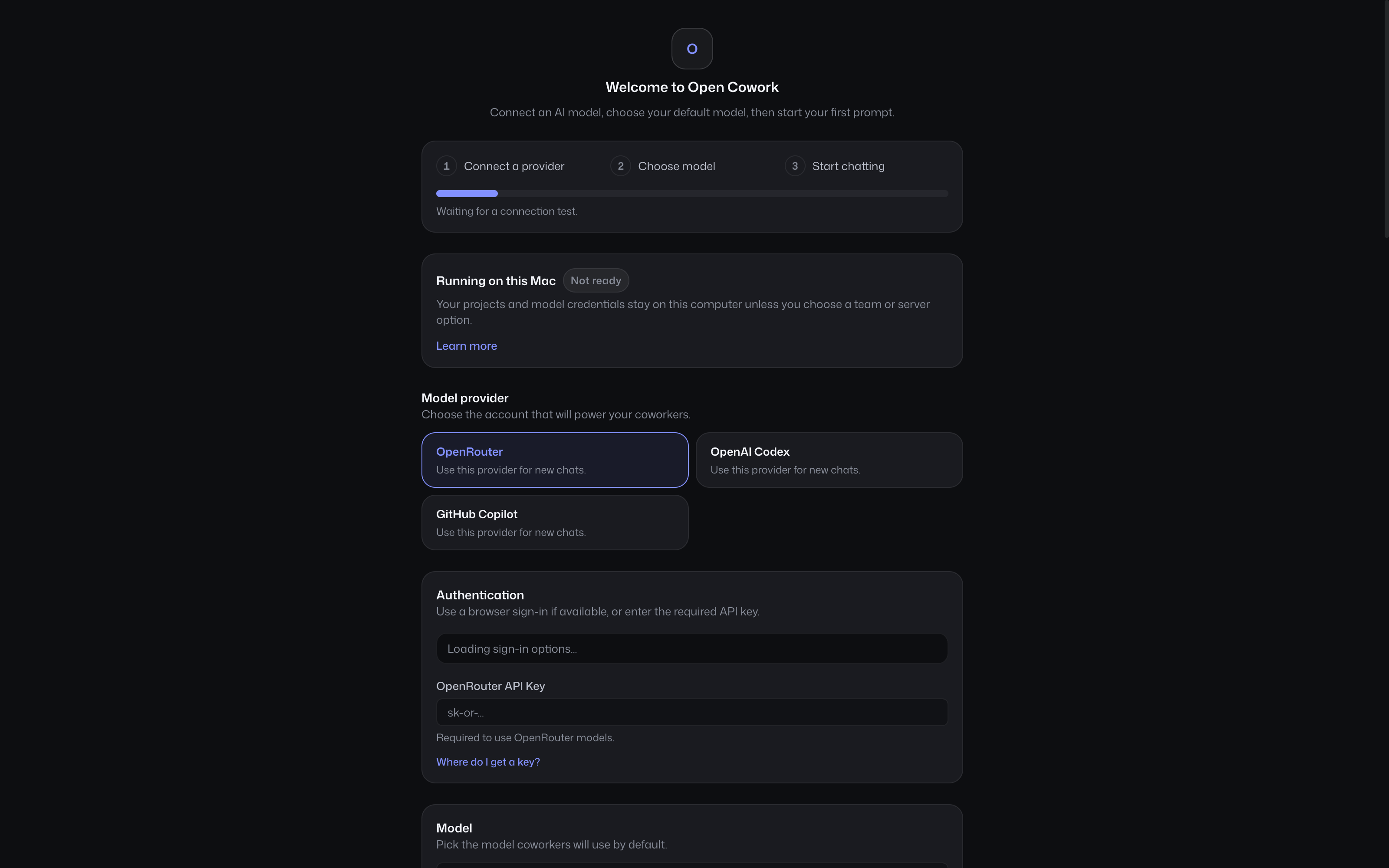
First run asks only for the provider, credentials or provider-native sign-in, default model, and a successful connection check. Team/server deployment and runtime-tool bridging remain optional, explicitly disclosed paths.
Home
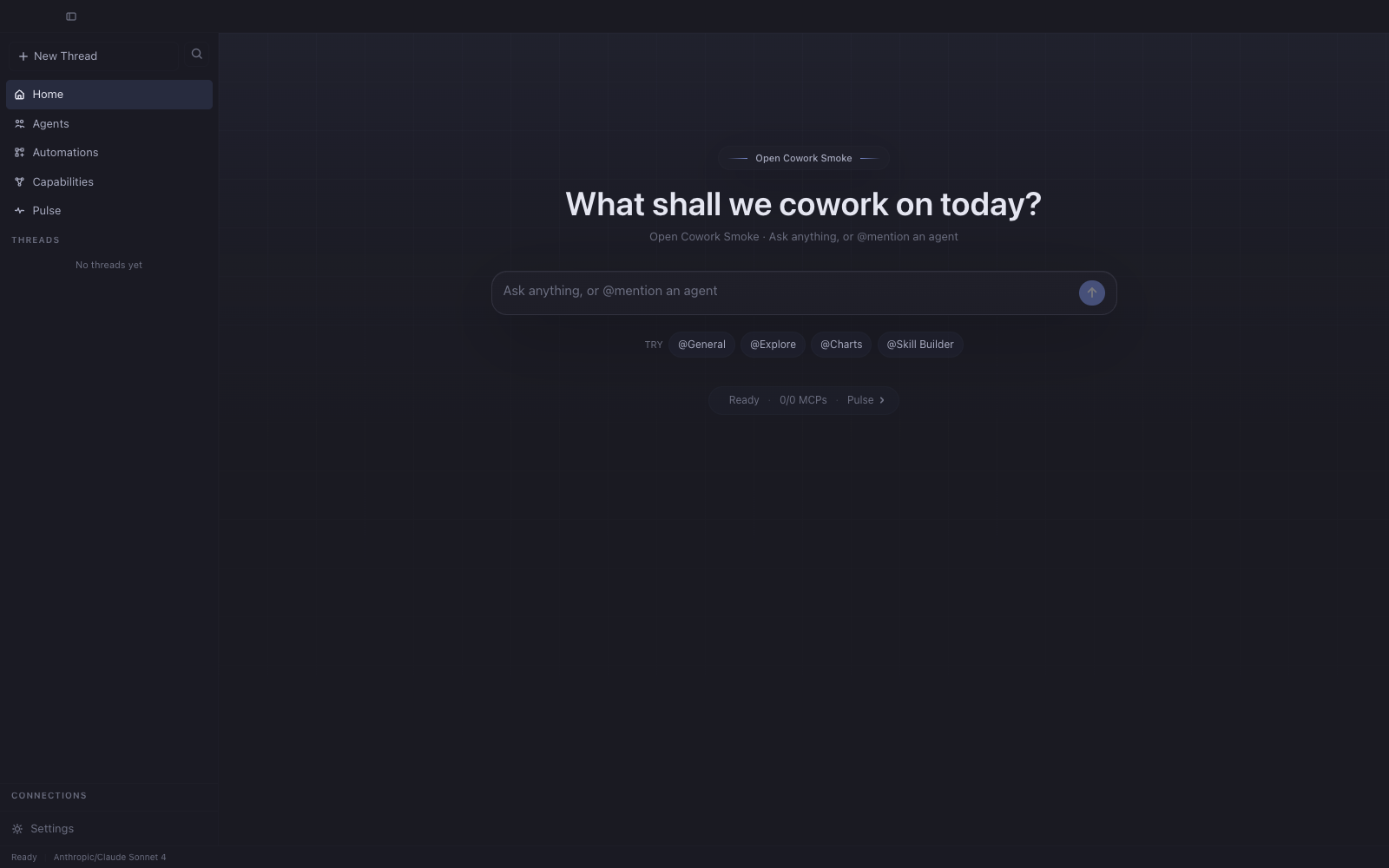
Home is the fastest path into useful work:
- model and reasoning controls match the in-thread composer
- file attachments use the same validation path as Chat
- a compact lead-coworker picker sets the primary mode, while typing
@opens inline specialist mentions - recent conversations in the active workspace let users resume work without a separate overview page
Submitting from Home creates or activates an OpenCode session and routes directly into Chat. Home should not accumulate status dashboards or secondary workflow-monitoring cards.
Chat
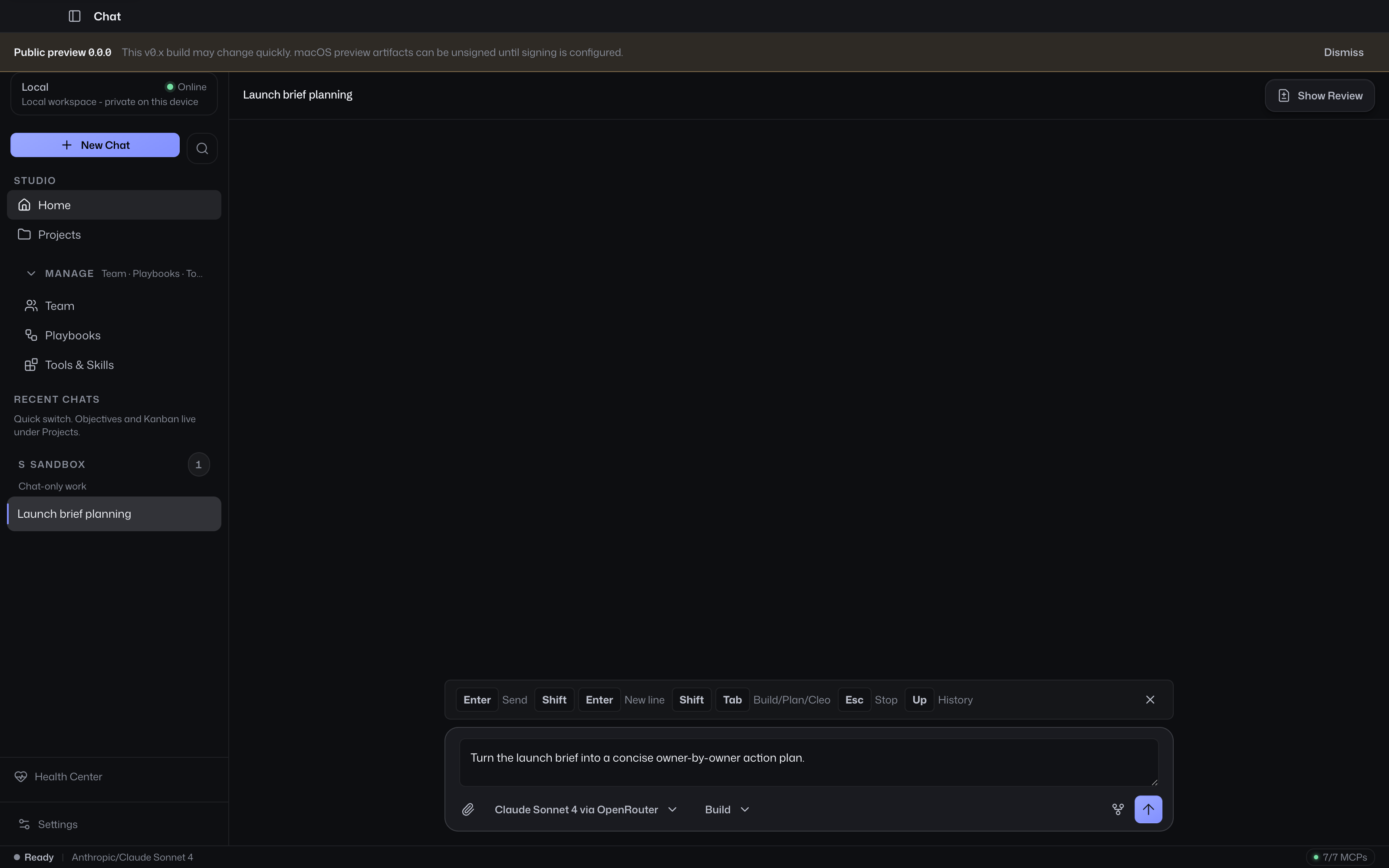
Chat is the runtime surface. OpenCode owns execution; Open Cowork projects the events into a desktop-friendly transcript with:
- streamed assistant output
- tool calls and artifacts
- approvals and questions
- coworker task cards backed by OpenCode child-session delegation
- model, agent mode, reasoning, and attachment controls
- session inspection and export helpers
The transcript should stay faithful to OpenCode history. Do not invent a second execution model in the renderer.
Projects
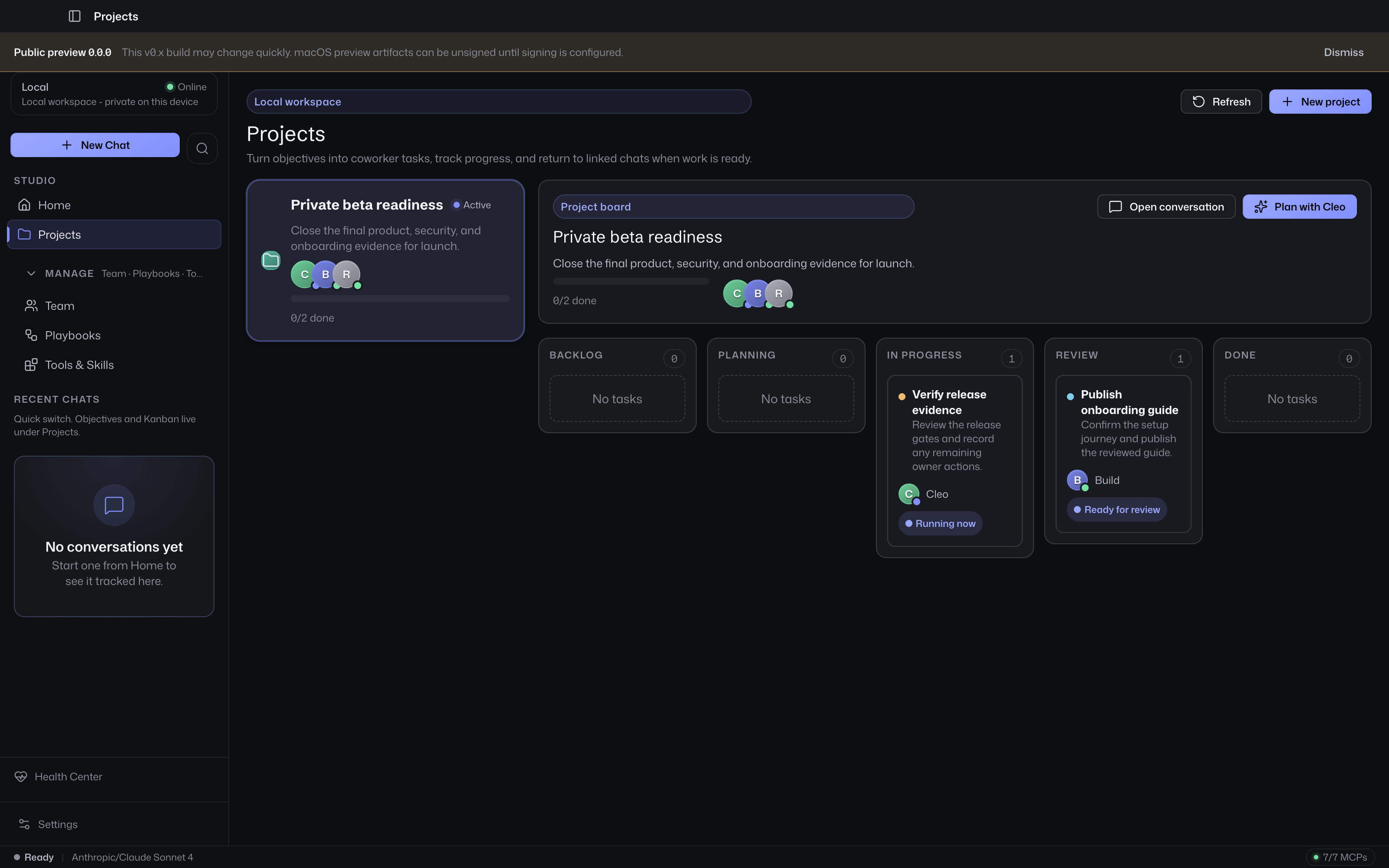
Projects is the coordination board: objectives, Kanban tasks, assignees, and linked OpenCode work chats. Quick recall of recent chats stays in the sidebar thread list. See Projects for the product decision.
Knowledge
Knowledge is the in-app knowledge surface for spaces, pages, proposal review, and the knowledge graph. It is a secondary Studio surface (default off) — enable with features.knowledge: true when you want durable notes next to Chat and Projects. Proposals remain review-gated; the surface does not invent a second execution runtime.
See Wiki for the optional standalone Wiki product (distinct from in-app Knowledge).
Approvals
Approvals is the cross-session review queue for pending permissions and questions. It is a secondary Studio surface (default off) — enable with features.approvals: true when users need a dedicated backlog page. OpenCode still owns the approval primitive; Chat continues to show in-thread gates whether or not this nav surface is enabled.
Playbooks
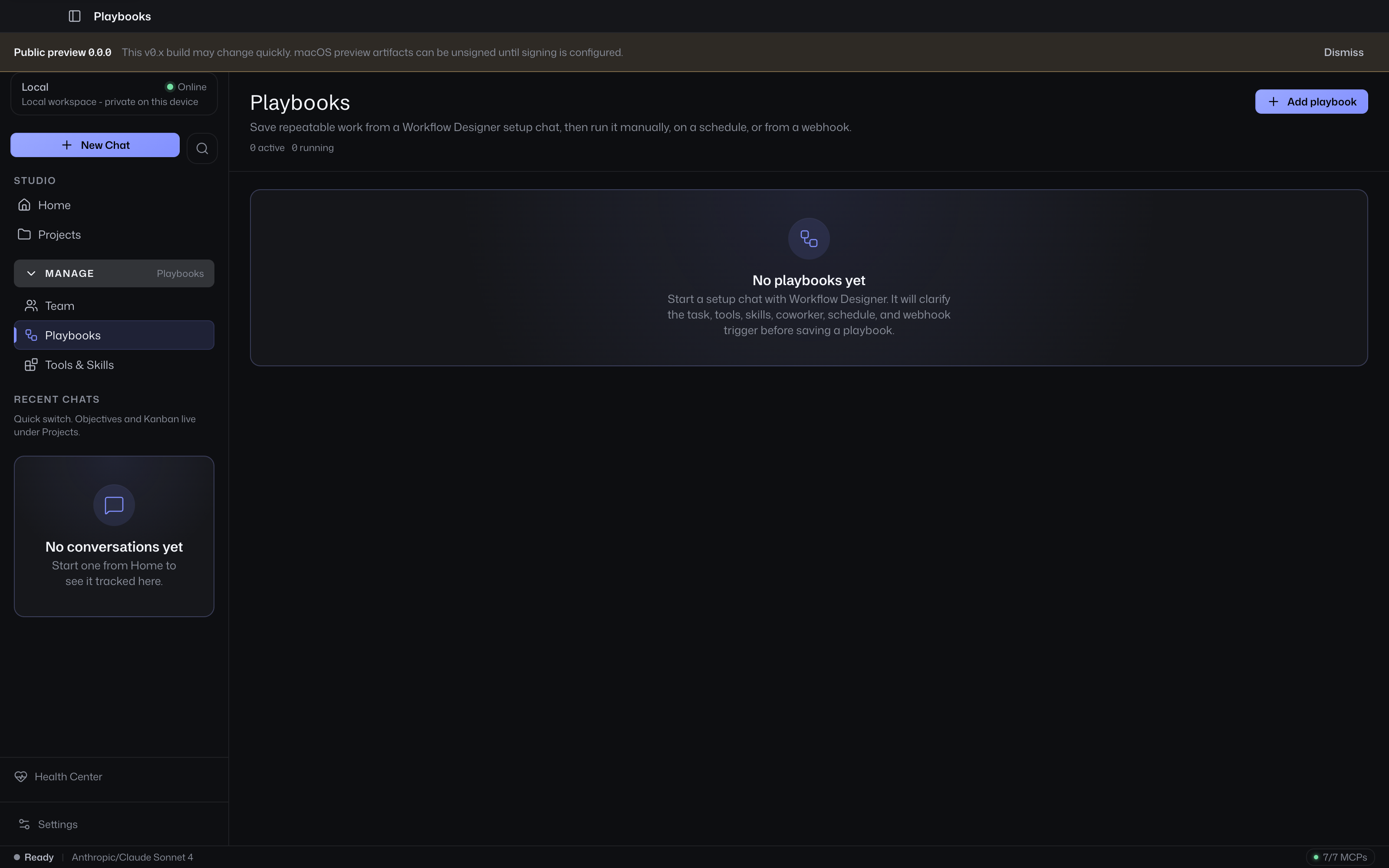
Playbooks are saved repeatable tasks created from normal OpenCode chats and stored as workflow definitions. They own:
- setup-chat creation with the Workflow Designer agent
- manual, scheduled, and webhook triggers
- local webhook URLs, authorization-header examples, and secret rotation
- run status, summaries, and linked run chats
The execution path still goes through OpenCode-native agents and approvals:
- Workflow Designer clarifies and saves the workflow through the Workflows MCP
- the selected lead coworker executes each saved run
- specialist coworkers can still be called through OpenCode-native delegation
Playbooks should feel like a simple list of saved repeatable tasks, not a separate agent runtime or operations dashboard.
Team
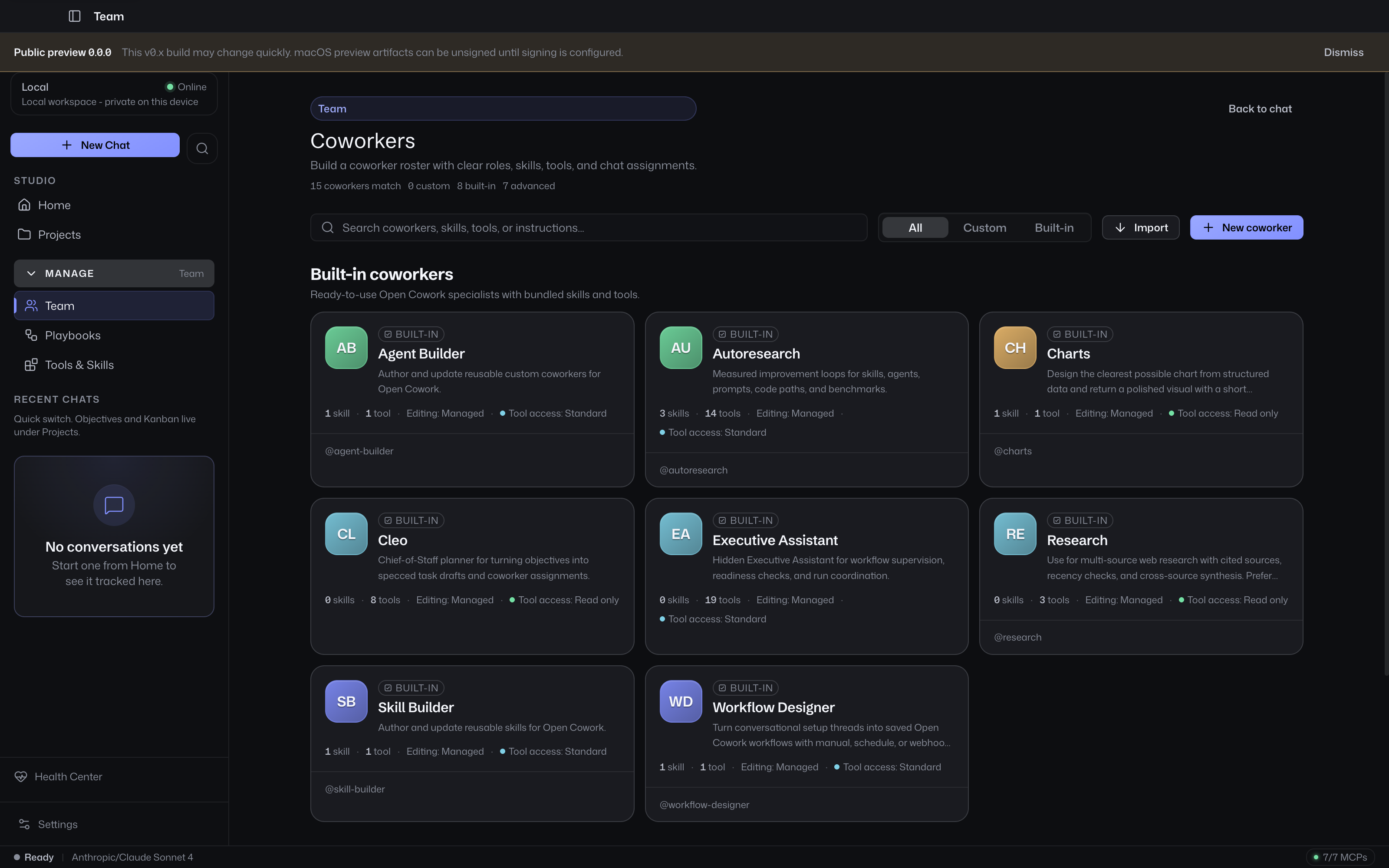
Coworkers are OpenCode-native agent configurations composed by Open Cowork. The Team surface should make it clear:
- what the coworker is for
- which tools and skills it can use
- whether it is built-in, configured, custom, or runtime-provided
- what model and reasoning settings it prefers
- where it can be used from Chat or Playbooks
Team UI can have a polished character feel, but the stats must stay grounded in real permissions, skills, tools, and runtime settings.
Channels
Channels is the Studio surface for gateway channel connections (for example Telegram, Slack, email, or webhooks), bindings, and delivery status. It is a secondary Studio surface (default off) — enable with features.channels: true when multi-surface users need channel health next to Team and Playbooks. Session operation for Standalone Gateway remains authority-gated as described in Product Contract.
Tools & Skills
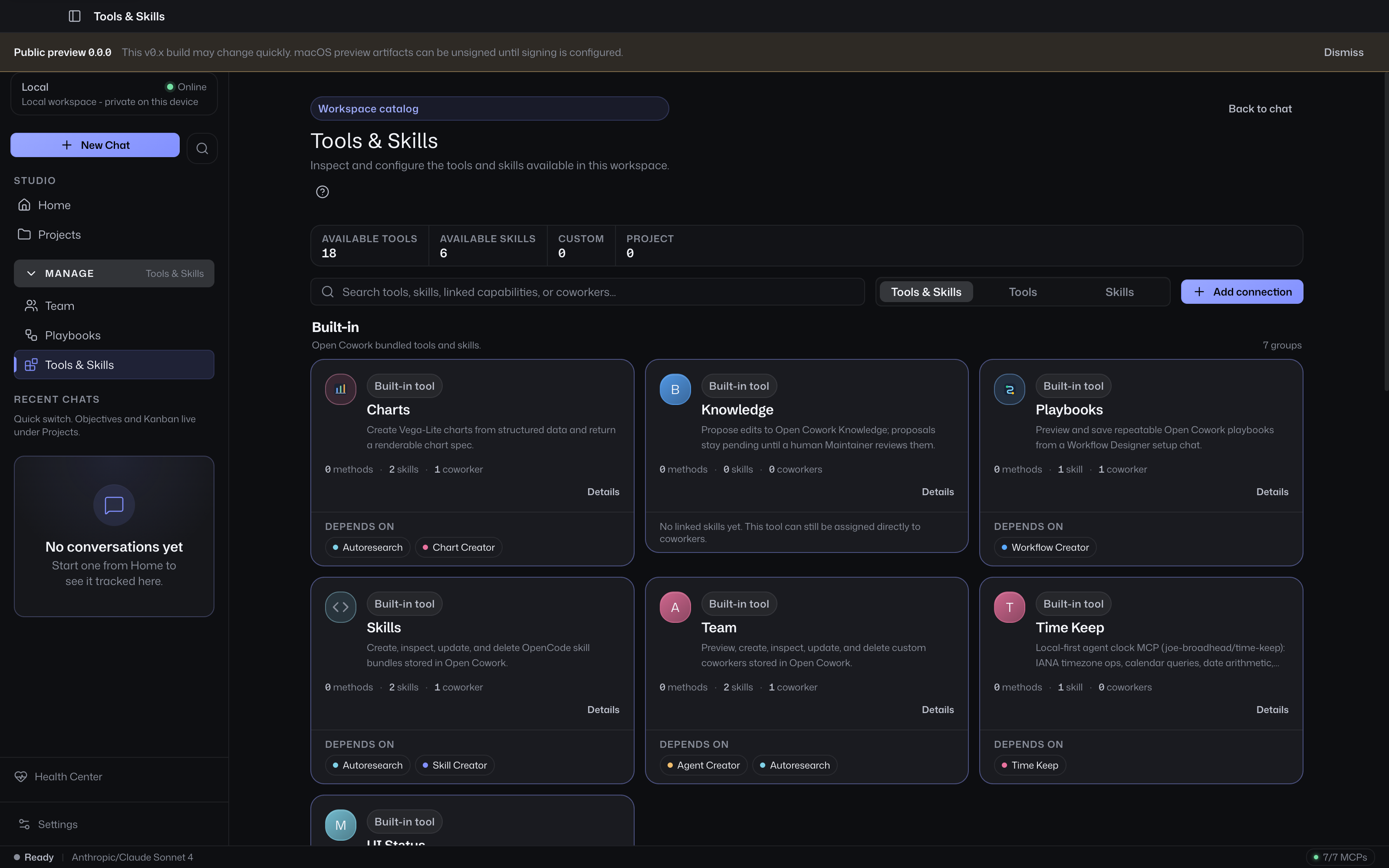
Tools & Skills is the capability catalog. It should answer:
- which MCP/native tools are available
- which skills are installed
- which coworkers and playbooks use each capability
- which credentials or permissions are required
- whether a capability is bundled, configured, or custom
Skills should be grouped and highlighted by the tools they use so users can understand the real authority behind a coworker or playbook.
Artifacts
Artifacts is the library for generated files, charts, reports, and other deliverables produced by project chats and playbook runs. It is a secondary Studio surface (default off) — enable with features.artifacts: true when operators want a dedicated library page. In-session artifact cards still appear in Chat when the surface is off. The library should make it easy to reopen source chats, download or reveal files, and clean up storage without turning into a second file manager for the host OS.
Settings
Settings holds lower-frequency configuration:
- appearance and localization
- provider/model credentials
- shell and file-write permissions
- workflow launch, background, and notification behavior
- storage and cleanup
Settings should configure the core surfaces without introducing separate product concepts.
Cloud Web shares this Studio vocabulary and visual language for Cloud workspaces. The route/API matrix, Desktop/Cloud parity matrix, admin/settings surface matrix, and production visual QA checklist live in Cloud Web Studio. Those contracts keep Cloud Web chat-first and Desktop-aligned while preserving the OpenCode boundary: Cloud Web remains a Cloud API client, not an execution runtime.